DomainTools App for IBM QRadar


DomainTools QRadar App
The DomainTools App for IBM QRadar helps security teams uncover advanced threats associated with network events from their environment. The app enables automation of bulk enrichment of events, from various log sources, with DomainTools intelligence.
The app populates reference data with DomainTools domain profile and risk scores for domain names observed in QRadar events. It also provides a DomainTools app area to research a single domain name to uncover domain ownership profiles, risk scores, and more.
Key capabilities enabled by the app include:
- DomainTools Threat Hunting Dashboard in QRadar presents a dynamic view of threats associated with observed domains in the user's environment.
- Create offenses using DomainTools proprietary proximity-based domain risk scores
- Investigate domain names in-context, without leaving QRadar
- Target threat hunting at key aspects of a domain name’s registration profile
Jump to Section
DomainTools QRadar App
Getting Started
Getting Started
QRadar Authentication
The DomainTools app runs a process that queries your QRadar event logs for new events, finds domain names, and then populates reference sets with Domain Profile and Risk Score data from DomainTools APIs. For this to work, the app needs a QRadar Authorized Service Token (also known as an SEC). Steps to enable SEC is listed below:
- Access "Authorized Services" from the QRadar Admin under the "User Management" section.
- Click "Add Authorized Service" and choose the correct user role and security profile for your deployment scenario.
Ensure the role and profile has sufficient privileges to query event logs, create and populate reference data and create offenses. After the service is created, select the service in the list of authorized services to view the token.
Data Source Identification
Before installing the app, first identify which data source(s) in your QRadar instance contain domain names. DomainTools data works best with web proxy log data, because the domain names are easy to extract, and the web traffic captures most of the interactions between end-user workstations on your network and potentially malicious domain names. Other less common but still effective log sources include DNS logs or logs from next-generation, layer 7 firewalls that also contain domain name data.
Once you locate the list of data sources, take note of the log source types that describe these data sources in QRadar. You will use that information later when setting up the DomainTools app.
Also note that this solution works best when event coalescing is turned off, as recommended by IBM for proxy and DNS log sources. For details, see this post on the IBM support site: https://www-01.ibm.com/support/docview.wss?uid=swg21622709
App Deployment
A step-by-step document that will help you configure the DomainTools Iris Investigate App: https://www.domaintools.com/content/Iris_Qradar_App_Deployment_Guide-min.pdf
FQDN Configuration in Data Sources
For the DomainTools app to function optimally, your log source must provide a field that contains only a fully-qualified domain name, and if possible, it should be labeled “FQDN”.
This documentation will assume the field name is “FQDN” unless otherwise noted.
DomainTools provides domain intelligence and risk scoring analytics for second-level domain names. Examples of a second-level domain names include “domaintools.com”, “google.com”, and “bbc.co.uk”. Most traffic on a network does not reference these second-level domains directly. Instead, logs will contain fully-qualified domain names (also known as FQDNs or hostnames) or even complete URLs. Examples of FQDNs include “domaintools.com”, “google.com”, and “bbc.co.uk”. Most traffic on a network does not reference these second-level domains directly. Instead, logs will contain fully-qualified domain names (also known as FQDNs or hostnames) or even complete URLs. Examples of FQDNs include “research.domaintools.com”, “www.google.com” or “www.bbc.co.uk”.
Those FQDNs must first be collapsed to only their domain name before a query is made to the DomainTools API to avoid making unnecessary requests. In most networks, this results in a 10x reduction in the volume of API queries, and it also improves performance by enabling effective caching.
The DomainTools Iris Investigate App in QRadar handles the task of extracting this second level domain name from the FQDN or a complete URL. QRadar does not provide a built-in mechanism to handle the extraction, this is non-trivial and cannot be performed effectively with regular expression matching. For ease of implementation the DomainTools app was designed to handle this for you.
You may find it necessary to add a custom field to your data source to extract the FQDN from a URL or other unparsed field. Adding a custom field to a log source in QRadar is out of the scope of this documentation.
The FQDN field name must be consistent across all the log sources of a given log source type for the DomainTools app to work properly. When you configure the app and point it to a log source type, you will also define the FQDN field name for that type.
Custom AQL to extract Domain
The DomainTools app ships with a custom AQL function that extracts registered Internet domain names from a string that contains a URL or a fully-qualified domain name (FQDN). Compound top-level domains like bbc.co.uk make it impossible to do this effectively with regular expressions. It is also essential that most reference data is indexed by registered domain.
This function can be used to map from an FQDN in an event to a registered domain contained in a reference set. To use the function, simply pass in the FQDN to the DOMAINTOOLS::TLDEXTRACT() function.
For example, this AQL returns the Registrar for a domain name in event data that contains a URL column:
SELECT REFERENCETABLE('dt_whois_details','Registrar Name', DOMAINTOOLS:TLDEXTRACT(FQDN) )FROM Events WHERE FQDN IS NOT NULL
App Components
App Log
Once the app is configured, the DomainTools App will run a job at the interval specified in the configuration settings, and fetch DomainTools data to populate in reference sets. A QRadar administrator can access application logs on the QRadar server to monitor this process and provide debugging information to DomainTools if problems arise.
The logs are stored in one of these folders:
/store/docker/vfs/dir/[container_id]/store/docker/containers/[container_id]/store/docker/volumes/[container_id]
The container_id portion of the path is not a predictable value, so it will require visiting each directory to find the one with the DomainTools log files. The correct folder will have a “dtstore.db” file and a “log” directory. Navigate to the “log” directory to find the app.log file.
If you have command line access to the server, this command can help you locate the folder more quickly than trial and error:
find /store -name "dtstore.db"
Managing QRadar Reference Data
QRadar supports several reference data collection types, but it only provides a UI to manage the contents of reference sets. There is no option in the QRadar admin interface to view reference maps or reference tables, both of which are used extensively by the DomainTools app. The only way to confirm these reference data were created properly, and to view their contents, is to use the API. Fortunately, QRadar provides interactive API documentation under the left side slide- out menu.
To view a list of reference maps:
- Go to main app menu (three bars in upper-left corner in latest versions) > "Interactive API for Developers"
- Navigate the highest-numbered tree, down to /reference_data
- Click on /maps to explore a list of maps, or /tables to explore the reference tables
- Scroll down through the page that appears on right and click "Try it now"
- The Response Body will list details on each active reference map
To view the contents of a reference map:
- Expand the /maps or /tables node and click /{name}
- Scroll down through the page that appears on right and locate the parameters section
- Enter the name of the reference map or reference table in the name field and click "Try it now"
- The Response Body will list details on each active reference map or reference table
DomainTools Reference Data Collections
TypeNameUsageReference Setdt_high_riskContains fully-qualified domain names (FQDNs) with high risk domains (as defined by the threshold setting in the DomainTools app configuration). The value will directly match the value in the column for the configured datasets to facilitate easy matching in offense rules.Reference Mapdt_fqdn_to_domainContains key / value pairs mapping fully-qualified domain names (FQDNs) to their second-level domain name. Provide a FQDN as the key to obtain a domain name. This reference set is also used to manage caching in the DomainTools app. Log entries that already have an entry in this reference set for the value in their FQDN field will be excluded from the enrichment job.dt_domains_risk_scoreContains key / value pairs mapping registered domain names to a DomainTools Risk Score. Provide a registered domain name as the key. Use this field in a rule with custom AQL to create offenses when domain names exceed a threshold. For example: REFERENCEMAP('dt_domains_risk_score', DOMAINTOOLS::TLDEXTRACT(FQDN)) >= 70Reference Tabledt_risk_reasonsContains a set of columns that give additional detail on the components of the next-generation Threat Profile-based DomainTools Risk Score, indexed by the registered domain name. These values will not be available if the app settings are configured to use the legacy DomainTools reputation score.Note that not every column will be populated for every domain name. The value will be the score from 0-100 that corresponds to a given reason code. Columns may include:
- proximity
- threat_profile
- threat_profile_malware
- threat_profile_phishing
- threat_profile_spam
- blacklist
- whitelist
Use this data to enrich log searches or to create custom AQL rules based on the specific reason for a given risk score. For example, a rule could alert with different severity for domains that score high because of a Threat Profile category of phishing, using this custom AQL in the rule:
REFERENCETABLE('dt_risk_reasons',
'threat_profile_phishing',
DOMAINTOOLS::TLDEXTRACT(FQDN) ) > 70
dt_whois_detailsContains a set of columns with parsed Whois data, indexed by the registered domain name. Columns names include at least:
- Registrant Country
- Registrant Name
- Registrant Org
- Registrant Phone
- Registrar Name
- Created Date
- Expired Date
- Updated Date
If you are using the Iris Enrich API, many additional columns may also be populated if there is data for a given domain name. See below for a list of possible Iris fields and how to use them.
You may this data to enrich log searches or to create custom AQL rules based on attributes in the Whois record of a domain name. For example, this rule could alert on domains registered at a specific registrar:
REFERENCETABLE('dt_whois_details',
'Registrar Name',
DOMAINTOOLS::TLDEXTRACT(FQDN) ) = 'Evil Registrar Inc.'
Iris Enrich API Data Fields
The Iris Enrich API is designed to return nearly everything DomainTools knows about a domain in a single API call. This includes Whois data, web hosting details, IP location, SSL details, website tracking codes, and more, plus the DomainTools Risk Score classifiers and evidence.
You may access this data in the same way as the standard fields included in the dt_whois_details reference table (see above). Note that not every domain will have data.
To discover which fields are available from the Iris Enrich API, use the QRadar Interactive API to view the contents of the dt_whois_details reference table (see Reference Data section).
Sample AQL
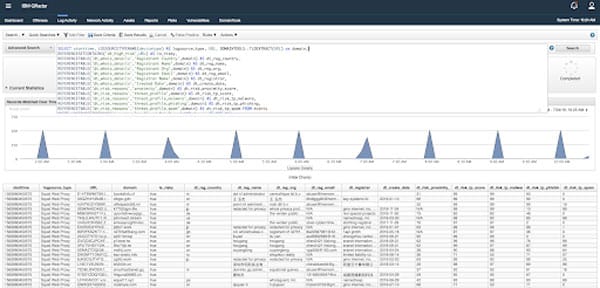
This AQL may be used to enrich a log source that contains an FQDN in the ‘FQDN’ column. Adjust the ‘LOG_SOURCETYPE_NAME’ value to match the name of your log source.
SELECT starttime, LOGSOURCETYPENAME(devicetype) AS logsource_type, URL, DOMAINTOOLS::TLDEXTRACT(URL) as domain,REFERENCESETCONTAINS('dt_high_risk',URL) AS is_risky,REFERENCETABLE('dt_whois_details','Registrant Country',domain) AS dt_reg_country, REFERENCETABLE('dt_whois_details','Registrant Name',domain) AS dt_reg_name,REFERENCETABLE('dt_whois_details','Registrant Org',domain) AS dt_reg_org, REFERENCETABLE('dt_whois_details','Registrant Email',domain) AS dt_reg_email,REFERENCETABLE('dt_whois_details','Registrar Name',domain) AS dt_registrar, REFERENCETABLE('dt_whois_details','Created Date',domain) AS dt_create_date,REFERENCETABLE('dt_risk_reasons','proximity',domain) AS dt_risk_proximity_score, REFERENCETABLE('dt_risk_reasons','threat_profile',domain) AS dt_risk_tp_score,REFERENCETABLE('dt_risk_reasons','threat_profile_malware',domain) AS dt_risk_tp_malware, REFERENCETABLE('dt_risk_reasons','threat_profile_phishing',domain) AS dt_risk_tp_phishing,REFERENCETABLE('dt_risk_reasons','threat_profile_spam',domain) AS dt_risk_tp_spamFROM eventsWHERE LOGSOURCETYPENAME(devicetype) = 'Squid Web Proxy' AND domain IS NOT NULL
DomainTools App Capabilities
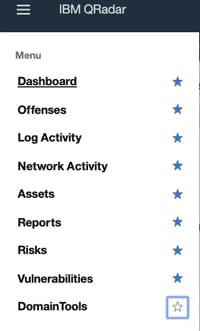
When the app is installed, a new menu item will appear on the QRadar navigation menu labeled “DomainTools”. Click the ★ to persist the DomainTools App in your instance of QRadar.
The app contains 3 sub tabs and their capabilities are described in detail below.
Domain Intelligence Dashboard
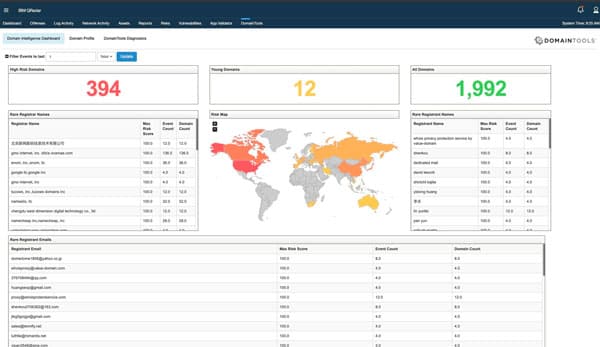
The DomainTools tab at launch, presents a Threat Hunting dashboard. It presents a dynamic view of threats associated with observed domains in the user's environment.
It conveniently displays a set of health metrics: Number of Risky Domains, Newly Created Domains and Total Number of Domains. It also includes a Risk Map panel that displays the geolocation of IP addresses observed in your logs. Besides these visualizations, it tabulates the Risky Registrar Names, Risky Registrants Names, and Rare Registrant Emails correlating them with DomainTools Risk Score.
Users can conveniently modify the timeframe for the dashboard to extend the historic and near-term view of Threats in the environment.
Domain Profile
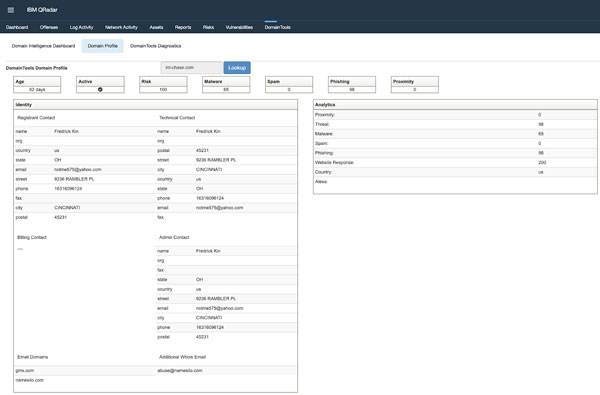
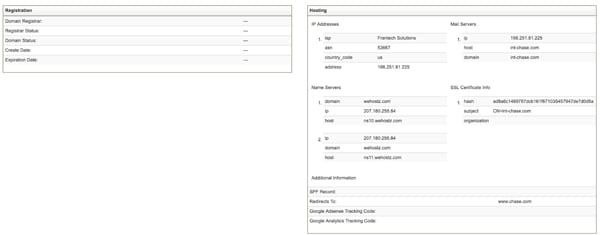
To investigate a specific domain name, click the "Domain Profile" button near the top of the dashboard and enter a domain name in the search box. The app loads risk score and Whois information on a single domain name from the DomainTools API.
This allows the user to quickly assess the risk level of the domain, and evaluate whether it warrants further exploration.
DomainTools Diagnostic
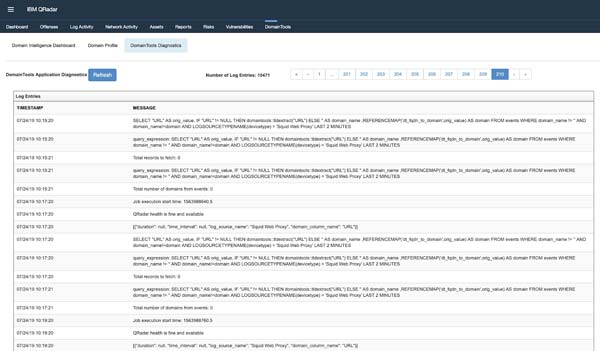
The app also includes a system diagnostic tab – “DomainTools Diagnostics”, that surfaces key entries from the server logs from the last 24 hours inside the App UI. This allows the user to quickly review the state of execution of the app in lieu of accessing the underlying server logs.
This tab is for the convenience of common Health checks of a functional app, without having to rely on a system admin function. This tab is read-only and latest records are displayed towards the end of the Log Entries. This cache of audit log is reset everyday.
For detailed debugging, please review the server and app logs in QRadar.