
DomainTools App For Splunk


Jump to Section
Solution Overview
Deployment Plan
- Target a Capability Level
- Identify Optimal Datasource
- Using the pre-configured base search
- Writing your own custom SPL
- Confirm data availability in staging environments
Solution Overview
The DomainTools solution for Splunk provides direct access within Splunk to DomainTools' industry-leading threat intelligence data on domain names and the infrastructure that supports them.
- Customers who deploy the app in Splunk benefit from:
- Increased visibility to events associated with risky domain names
- Precisely targeted threat hunting activities
- Rich domain data pre-populated in Splunk lookups and indexes
Key features in the app are enabled by the DomainTools Risk Score, a proprietary scoring algorithm that proactively identifies malicious domain names before they are weaponized. The technology is based on machine learning algorithms applied to DomainTools' unparalleled coverage of domain name features and infrastructure characteristics.
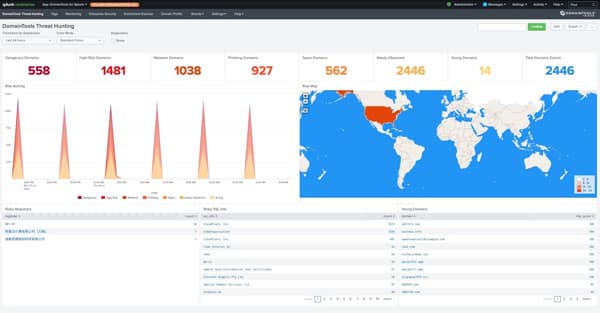
Risk Score powers most analytics in the app’s Threat Hunting Dashboard, designed to help organizations gain quick situational awareness of the risk presented by domain names on their network. The dashboard also helps guide teams to effectively leverage DomainTools data in their SOC workflows, with drill-downs that expose the underlying events.
The DomainTools App works in parallel with Splunk Enterprise Security (ES) but does not depend on it. Customers who have not yet deployed ES can still realize significant value from the DomainTools solution.
Threat
Hunting
Surface meaningful alerts that are enriched by the comprehensive Iris dataset, to identify malicious intent.
Event
Enrichment-at-Scale
Leverage the DomainTools Iris dataset for immediate access to dozens of attributes attached to every domain event in Splunk.
Proactive
Risk Scoring
Raise alerts with batch processing and access Risk Score, Proximity and Threat Profile classifiers.
Deployment Plan
The DomainTools solution for Splunk benefits from deliberate planning to ensure a successful deployment before the app is installed. Essential planning steps include:
- Target the right capability level for your deployment
- Identify an optimal datasource and query method
- Choose an enrichment method and plan the app config
The DomainTools team is available to guide customers through each phase of a deployment to ensure the best outcomes. Contact us via email at splunk@domaintools.com for more details.
Target a Capability Level
DomainTools solutions for log enrichment, alerting, and hunting are typically deployed in phases within organizations striving to improve their detection and response capabilities. Each phase brings additional capabilities to a security organization.
CapabilityExpected OutcomesEnabled ByLevel 0Confirm connectivity to DomainTools APIs
Perform ad-hoc whois lookups in context on individual domain names
“Whois” lookup feature on the Threat Hunting dashboardLevel 1Fully-operational Threat Hunting Dashboard
See overall risk of domains on-network with drill-down to reveal actual events
Scheduled searches and KV-store lookups that watch for domains in events and queue them for analysis
Online queries at scale to DomainTools’ enrichment APIs
Level 2Raise notable events in Enterprise Security or alerts in your own searches when risky or young domains appear in Splunk events
Leverage DomainTools Risk Score in your own custom searches and dashboards
Custom correlation searches for Splunk Enterprise Security
DomainTools Risk Score classifiers that anticipate likelihood a domain will be used for malware, phishing, or spam
Level 3Perform precisely-targeted threat hunting with Splunk searches on domain ownership, hosting, and SSL characteristics
Correlate aspects of newly-observed threats with historical events.
DomainTools enrichment data stored persistently in Splunk indexes that closely match the timing of source events
Extensive DomainTools Iris dataset that provides Whois, active DNS, and web crawl data for nearly every Internet domain
Identify Optimal Datasource
The DomainTools App works by finding domain names in your proxy logs, DNS logs, or a similar datasource that contains domain names, and enriching that data with analytics from DomainTools, including Iris domain profiles and Risk Scores.
The App comes pre-configured with a performance-optimized query that will work well in environments which are already configured to efficiently locate web proxy events from datasources that comply with the Splunk Common Information Model, or CIM.
It is also possible to configure the App with your own custom SPL query. This may be necessary if your data sources are not yet CIM compliant, or if you have unique requirements such as accessing data from several different sources.
However, if you opt to configure the app with your own custom SPL query, you must ensure the query is performant in your environment. At a minimum, the query should return ten minutes of events in no more than two minutes of search execution time, with minimal impact on your search head or search head cluster.
It is vital that you select the correct base search method for your environment before you proceed with the installation.
Base SearchProsConsPre-Configured
- No post-install customization or configuration required, other than the API username and key initial app setup
- Finds domain names in every CIM-compliant data source from the Web data model
- Fast for most environments
- Requires CIM compliant data sources that use the Web data model with host names in the Web.url field
- DomainTools Threat Hunting Dashboard will be empty if the base search can’t find domains
- Must have acceleration turned on for the Web data model
Custom SPL
- Does not require your datasource to be CIM compliant
- Can be optimized to your environment and data sources
- May cause performance problems if the search is not manually optimized
- May require additional tuning after installation, making this option unsuitable for rigorous change management cycles
- Must return the hostname or domain name in a field explicitly named “domain”
Using the pre-configured base search
The pre-configured search base search in the App is:
| tstats summariesonly=true count from datamodel=Web by Web.url| rename Web.url AS domain
For this to work, the Web data model must have acceleration turned on. If acceleration is not turned on, but data has been mapped to the CIM, you can modify the base search to use summariesonly=false with some potential degradation in performance.
Writing your own custom SPL
If the pre-configured base search won’t work for you and you must write your own SPL, first identify a datasource that contains URLs (web links) or hostnames that represent communication from your network to the public Internet. In most cases, web proxy logs provide the best visibility into these domains.
Next, review your source data carefully to ensure it contains as few IP addresses as possible. The DomainTools solution provides data on domain names, not IPs, so any IPs sent to the API will not return useful data and consume rate limited resources.
Finally, craft a Splunk search query that efficiently finds events from your preferred datasource(s) and configure this as the new base search in the settings for the DomainTools App. (Domaintools for Splunk → Configure → Application Settings → Custom Search Definition)
Important: If your custom search does not begin
tstats
you must add
search
to ensure proper functionality once it is merged into the DomainTools scheduled searches. It also must not start with a pipe character. For example:
search index=mycustomindex | rename url AS domain
It is not necessary (or effective) to write regular expressions or other parsing rules to find the primary domain names in logs filled with hostnames or URLs, or to try and de-duplicate them. The rest of the DomainTools queue builder search jobs will handle this for you. The use of tstats in the pre-configured search is primarily for optimization, and we recommend using it as well if you build your own custom SPL.
Confirm data availability in staging environments
If you use a staging environment or development environment to test new Splunk apps, ensure the same data source you plan to use in production is also available to the Splunk search heads in the test environment.
If the data is not available, the DomainTools solution will not be able to progress beyond Level 0 in the capability matrix above. Move the app to production before you continue with the evaluation.
App Installation
Ensure Connectivity
The DomainTools solution needs Internet access to query the DomainTools API, download a TLD suffix list, and, optionally, the list of top 1 million most trafficked Internet web sites. Ensure the Splunk search head or search head cluster you plan to install the App on has Internet access, or that it has the proper HTTP and HTTPS proxy configuration for your network setup. You may need to explicitly authorize queries to the hostname
api.domaintools.com
outbound traffic on ports 80 and 443.
You may also configure the DomainTools App with a proxy server of your choice at the same post-installation configuration step as you enter API keys.
Obtain a DomainTools API Key
You will need a DomainTools Enterprise API username and API key to complete the app setup. Ensure these are readily available before you install the app, but try to avoid sharing them over insecure channels such as email.
DomainTools typically provides access to obtain the API credentials by creating an account for the primary point of contact in your organization. If you are unsure who that is, or if you need to obtain new API keys to evaluate the app, contact us via email at EnterpriseSupport@DomainTools.com and we will assist you.
DomainTools API keys are provisioned with access to a specific set of API endpoints. To reach Level 1 in the capability matrix above, you must have access to the DomainTools Iris Enrich API, or one of the legacy endpoints that provide equivalent functionality.
Download the DomainTools App from Splunkbase
You need the DomainTools App to enable the DomainTools solution in your Splunk environment. The latest version of the add-on is available on Splunkbase at this URL: https://splunkbase.splunk.com/app/3376/.
Be sure to download the most current version of the app.
If you are planning an upgrade, review the release notes carefully to become aware of any breaking changes, or contact DomainTools directly to avoid any issues.
Use admin credentials
You must have a Splunk account with admin credentials to successfully install and configure the App. After the App is installed, most user functions should be available with less privileged accounts. You may also need command line access (i.e. SSH access) to perform some deployment and diagnostics functions, especially if you are deploying in a clustered environment.
Remove prior versions
For best results, use the Splunk web UI to completely uninstall any previous versions of the DomainTools App. Then use command line access to remove any remaining “DomainTools-App” folders.
Decide whether to use the whois index
If you are targeting Level 3 in the capability matrix above, or you plan to use the Domain Analysis dashboard in Splunk Enterprise Security, you will need the whois index created on your Splunk indexers. Check before installing the app and create the index if needed.
After the app is installed, you will need to manually enable the “DomainTools Iris - Whois Index Populator” scheduled search if you are using the DomainTools Iris Enrich API, or the “DomainTools Enterprise - Whois Index Populator” scheduled search if you are using the older Enterprise API endpoints such as Parsed Whois, Risk or Reputation.
It is important to note that the whois index is not populated by default when the DomainTools App is installed. We strongly encourage customers to enable populating the index to prepare you to achieve the highest level of capability that this solution offers, including historical threat hunting searches, but you must manually enable the jobs and prepare the index to take advantage of those features.
When the jobs are activated, the DomainTools App will record an entry in the whois index for every event that contains a domain name, with complete details retrieved from an earlier lookup to the DomainTools API. Data is essentially copied from the lookups to create each entry in the index to ensure DomainTools data is preserved beyond the cache retention period defined for the lookups in the DomainTools app config. This also creates a corresponding event that is closely matched in time to the original event to facilitate correlation searches.
Install the app
The DomainTools App is designed to be installed on a search head or within a search head cluster. It has been tested with the recommended Splunk deployment model for apps in a clustered environment, including distributed configuration, but it is important to follow Splunk guidelines to ensure a successful deployment. We encourage customers to review the Splunk docs on app install and config in a clustered environment, including: https://docs.splunk.com/Documentation/Splunk/7.2.4/DistSearch/PropagateSHCconfigurationchanges.
Essentially, the process for installing and configuring the DomainTools app in a clustered search head environment works like this:
- Identify the server with the deployer role and obtain admin and console access to the server.
- Obtain the latest version of the DomainTools App and place it in the appropriate location on the deployer.
- Deploy a configuration bundle to the search head members.
- Log in to one of the search head members and finish the setup and configuration for the DomainTools app.
DomainTools provides support for apps deployed in this standard configuration model. Although it is possible to use an alternative method for deploying apps, such as a configuration management tool, those methods create scenarios that are unique to your environment, and as such, DomainTools can provide only limited support for those deployments.
Configure the app
The first step is to finalize the setup of the app using the standard Splunk app setup page.
- Click on the DomainTools app in the list of Splunk apps.
- The default app setup page should appear instead of the DomainTools Threat Hunting Dashboard. If it does not appear, click the “Apps” drop-down at the very top of the Splunk web UI, then “Manage Apps”, and find “DomainTools for Splunk” in the list. Click the “Setup” link in the row for the app to access the app setup page.
- Enter the DomainTools API username and API key.
- Save the settings and the DomainTools app dashboard should load.
Note: if your search head cluster communicates with the Internet via a proxy, you may need to configure a proxy URL manually in the DomainTools app settings. Obtain console access to the server, navigate to the DomainTools App app directory, edit the “domaintools.conf” file, and add a new line with the correct proxy URL, like this:
proxy_url = https://user:password@proxy.server
Next, review the app configuration page and make any necessary changes. Be sure to review the capability level you are targeting and the decision you made on which base search to use (see above).
- Locate the “DomainTools for Splunk” app in the Splunk UI and open it to view the app’s default page: DomainTools Threat Hunting dashboard.
- Click “Configure” on the toolbar, then “DomainTools App Configuration”
- The app will verify your API credentials and list the products you have access to. Most customers will want to use the “Iris Enrich” API, but if your contract does not include that endpoint, the app will try to select the next best enrichment and risk score source.
- Review the search under the “Custom Search Definition” and ensure it will work in your environment. Consider running the search manually over a small set of data (about 10 minutes) to ensure it runs without errors. If you see errors, or it cannot find the data you need to enrich, you may need to write a custom search.
- Ensure the “Activate populating search” is selected if you are targeting a Level 3 capability and have prepared the “whois” index.
- Click “Save” in the upper right corner of the page to finalize your settings.
Testing and Validation
After the app is installed, select a target Capability Level from the matrix above, then follow the corresponding test plan to ensure the app is working correctly.
Capability TargetTest CoverageTest PlanLevel 0Confirms connectivity to DomainTools APIs
- Access the DomainTools app in the Splunk UI.
- Enter “domaintools.net” in the search box in the upper right corner of the app, then click the “Whois Lookup” button.
- The results page will load with at least a domain age, an IP address, and a set of name servers.
Level 1Ensures pre-configured base search (or user-defined custom search) finds events with domains.
Validates enrichment of domains with DomainTools data and persistence in kv lookups.
- Wait at least 30 minutes after installing the app.
- Access the DomainTools app page and confirm the “Total Domains Events” number is non-zero, and increasing over time.
- Check the “Show” box next to “Diagnostics” at the top of the dashboard, then confirm the “Retrieved” count is non-zero, incrementing, and, after a few hours, is significantly higher than “Pending”.
- After a couple hours, at least some of the other dashboard panels at the top of the Threat Hunting Dashboard should become non-zero. Clicking each number should drill-down to show source events.
Level 2Confirms component risk scores and other Iris data can be accessed from custom searches.
Confirms basic integration with Splunk ES.
- Consider writing a custom Splunk search based to find domains with a high DomainTools Threat Profile malware score.
- If you are using Splunk Enterprise Security (ES), check for new Noteable Events to be raised when events occur containing domain names scored higher than the configured threshold in the DomainTools app config (by default, 90).
Level 3Validates a working whois index and confirms the jobs to populate it are working as expected.
- Search “index=whois” and confirm multiple entries for domain names, with most fields populated.
- If you are using Splunk Enterprise Security (ES), access.
Resources
We’re here to help! For more information, please visit our website, contact your DomainTools representative or email dtsplunk@domaintools.com.