"Black Box" Testing with the Python Black Box Tool (pbbt)

I. Introduction
Testing can be very helpful when it comes to improving code quality. There are many different tests that one can run against programs. Just to mention a few by way of example:
- Unit tests: Does each granular routine perform as expected? For example, does a new hypothetical sort routine sort the way it should?
- Hot spot analysis: Where does my code spend most of its time? Can I rewrite or optimize that function or those functions to speed it up?
- Fuzzing: If I provide unexpected inputs, does the program handle that cleanly, or can I exploit inadequately sanitized inputs to do things I shouldn’t be able to do?
Another type is known as black box testing. Black box testing assumes no knowledge of how the program works, it’s just treated as, well, a “black box”: inputs go into the black box, stuff happens, and outputs come out. It’s often used to ensure that:
- Functionality is preserved across changes: that is, after new code is added, the program still runs as expected
- Output remains consistent: for a given set of inputs, the same results get returned
- All platforms perform the same: for instance, the Linux and BSD builds of a program return consistent results.
In a nutshell, all those tests compare how things worked previously with how things work now, looking for changes, assuming that variability is generally unwanted (or at least something which should be carefully scrutinized and understood). This is admittedly a simple testing approach, but a foundation on top of which more sophisticated tests can be added.
But how to do tests of this sort, particularly for command line tools like the Farsight
client?
In today’s blog article, we’ll discuss the Python Black Box Testing tool, or
pbbt
.
II. pbbt
pbbt
can easily be installed using pip:
# pip install pbbt
Now construct an
input.yaml
file describing the tests you’d like to perform. For this example, let’s do a simple
dnsdbq
query for any “A” records seen for farsightsecurity.com before March 30th, 2015 in sorted order (
-S
):
Exhibit 1: Sample input.yaml file
title: dnsdbq tests
suite: all
output: output.yaml
tests:

- sh: dnsdbq -r farsightsecurity.com/A -B 2015-03-30 -S
You’re then ready to capture baseline results:
Exhibit 2: Sample pbbt training run
$ pbbt input.yaml output.yaml --train
========================================================================
dnsdbq tests [/all]
("input.yaml", line 1)
--
SH: dnsdbq -r farsightsecurity.com/A -B 2015-03-30 -S
("input.yaml", line 6)
* new test output
;; record times: 2013-09-25 15:37:03 .. 2015-04-01 06:17:25
;; count: 6350; bailiwick: farsightsecurity.com.
farsightsecurity.com.  A  66.160.140.81

;; record times: 2013-07-17 22:08:50 .. 2013-09-25 15:47:47
;; count: 628; bailiwick: farsightsecurity.com.
farsightsecurity.com.  A  149.20.4.207

> Press ENTER to record, 's'+ENTER to skip, 'h'+ENTER to halt
>
> Press ENTER to save changes, 'd'+ENTER to discard changes
>
*saving test output to 'output.yaml'
========================================================================
*TESTS: 1 updated
Once you have that baseline, you can then rerun
pbbt
later to check for any changes:
Exhibit 3. Sample pbbt test run
$ pbbt input.yaml output.yaml
========================================================================
  dnsdbq tests [/all]
  ("input.yaml", line 1)
--
  SH: dnsdbq -r farsightsecurity.com/A -B 2015-03-30 -S
  ("input.yaml", line 6)
========================================================================
*TESTS: 1 passed
If nothing has changed, you’ll see that the test will show as “passed.”
While this simple example only did a single test, you can run multiple tests by adding additional test lines to the bottom of the
input.yaml
file. For example, we might add:
- sh: dnsdbq -r ieee.org/A
- sh: dnsdbq -i 128.223.32.0/24
You’ll then need to rerun
pbbt input.yaml output.yaml --train
to update the baselines for the new tests:
Exhibit 4: Rerunning pbbt with the new tests
$ pbbt input.yaml output.yaml --train
========================================================================
dnsdbq tests [/all]
("input.yaml", line 1)
--
SH: dnsdbq -r farsightsecurity.com/A -B 2015-03-30 -S
("input.yaml", line 6)
--
SH: dnsdbq -r ieee.org/A
("input.yaml", line 7)
* new test output
;; record times: 2010-06-24 04:11:02 .. 2017-03-30 15:37:15
;; count: 2708324; bailiwick: ieee.org.
ieee.org. A 140.98.193.141
;; record times: 2015-03-18 14:18:03 .. 2015-03-18 14:18:03
;; count: 2; bailiwick: ieee.org.
ieee.org. A 140.98.193.141
ieee.org. A 140.98.200.215
[etc]
> Press ENTER to record, 's'+ENTER to skip, 'h'+ENTER to halt
SH: dnsdbq -i 128.223.32.0/24
("input.yaml", line 8)
* new test output
;; zone times: 2010-04-13 18:39:17 .. 2018-02-13 20:00:09
;; count: 2850
phloem.uoregon.edu. A 128.223.32.35
;; record times: 2016-12-04 04:16:52 .. 2017-08-24 06:59:58
;; count: 4
vl-32-gw.uoregon.edu. A 128.223.32.1
[etc]
> Press ENTER to record, 's'+ENTER to skip, 'h'+ENTER to halt
>
> Press ENTER to save changes, 'd'+ENTER to discard changes
>
*saving test output to 'output.yaml'
*TESTS: 1 passed, 2 updated
We can then check all three of our tests:
Exhibit 5: Checking Our Expanded Set of Tests
$ pbbt input.yaml output.yaml
========================================================================
  dnsdbq tests [/all]
  ("input.yaml", line 1)
--
  SH: dnsdbq -r farsightsecurity.com/A -B 2015-03-30 -S
  ("input.yaml", line 6)
--
  SH: dnsdbq -r ieee.org/A
  ("input.yaml", line 7)
--
  SH: dnsdbq -i 128.223.32.0/24
  ("input.yaml", line 8)
========================================================================
*TESTS: 3 passed
III. Handling Output That’s “Expected-to-Change” in pbbt
Sometimes we may run tests that result in output that we’d expect to change over time. For example, if we’re looking at currently-used DNS names, we’d expect that the last-seen and count fields for those names will update over time, as TTLs “cook down” and subsequent queries result in new cache-miss traffic seen by Farsight’s sensor network. For example:
Exhibit 6. Sample DNSDB query showing two “expected-to-vary” fields (emphasis added)
$ dnsdbq -r www.irs.gov/cname -S -l 1
;; record times: 2015-10-07 18:57:55 ..
2018-02-14 17:35:31
;; count: 12784406; bailiwick: irs.gov.
www.irs.gov. CNAME www.irs.gov.edgekey.net.
[some time later...]
$ dnsdbq -r www.irs.gov/cname -S -l 1
;; record times: 2015-10-07 18:57:55 .. 2018-02-14 22:00:19
;; count: 12787009; bailiwick: irs.gov.
www.irs.gov. CNAME www.irs.gov.edgekey.net.
If we want to do black box testing of the query used in the Exhibit 6 illustration, we need to be able to tell
pbbt
to ignore the (expected/okay) changes to the time-last-seen and the count fields.
Fortunately,
pbbt
has the ability to do exactly that via its ignore functionality, leveraging python regular expressions (“regexes”) to represent the content that should be disregarded when comparing our baseline output to subsequent test output.
Our first task is building those required regexes. Some regex “savants” can effortlessly construct regexes mentally; the rest of us can benefit from the very helpful pythex tool.
Exhibit 7. The pythex regular expression construction tool, used to mask the varying last time seen
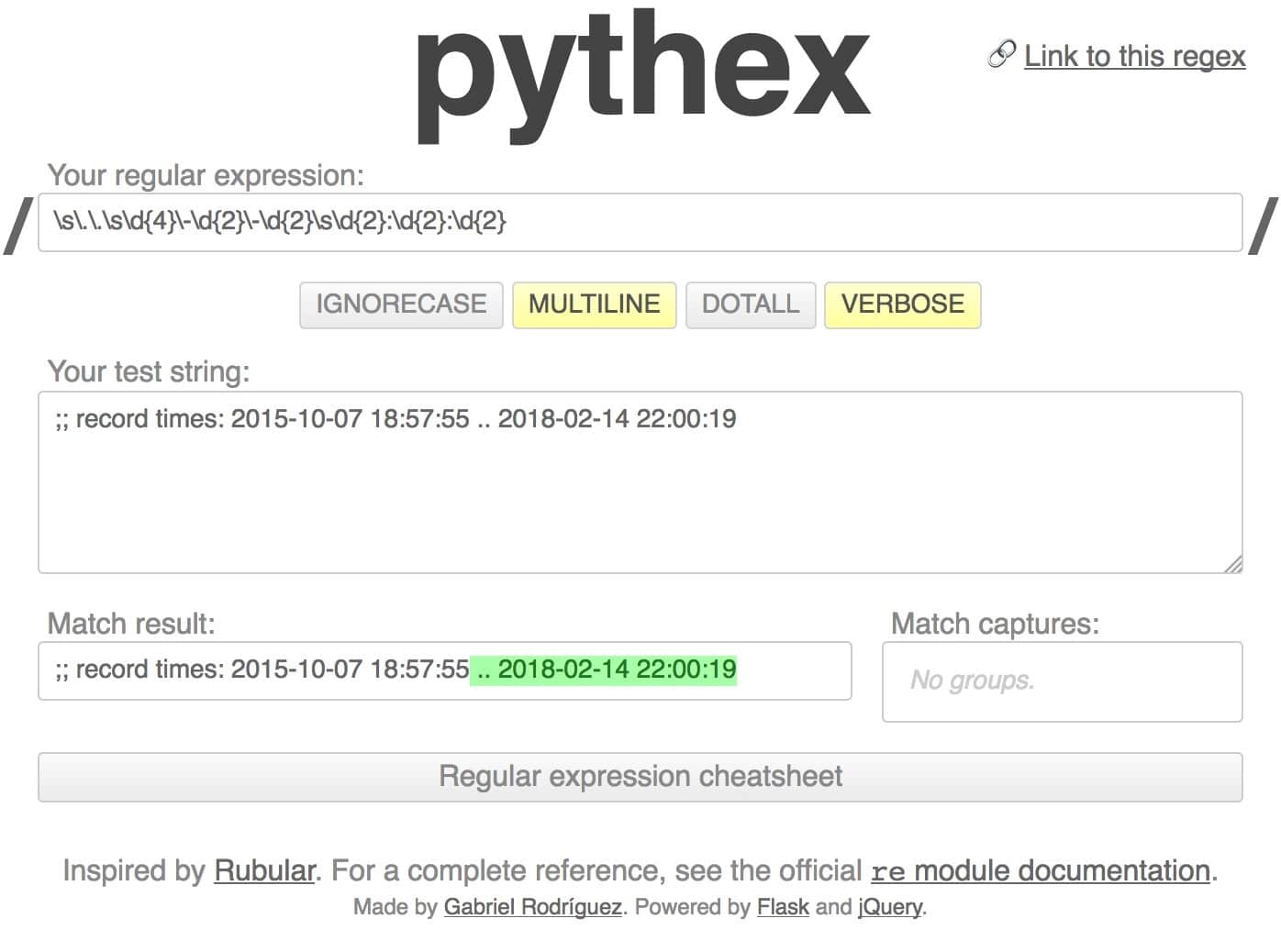
Note that we’ve selected “MULTILINE” and “VERBOSE” to match the regex options
pbbt
uses by default.
Exhibit 8: Decoding the first regex
\s	matches whitespace
\.	matches a literal dot
\d	matches any digit
{n}	repeat the previous element n times
\-	literal dash
:	literal colon
Now we build the other regex we need, this one to mask out the count string:
Exhibit 9: A 2nd pythex regular expression example (used to mask the naturally varying count field)
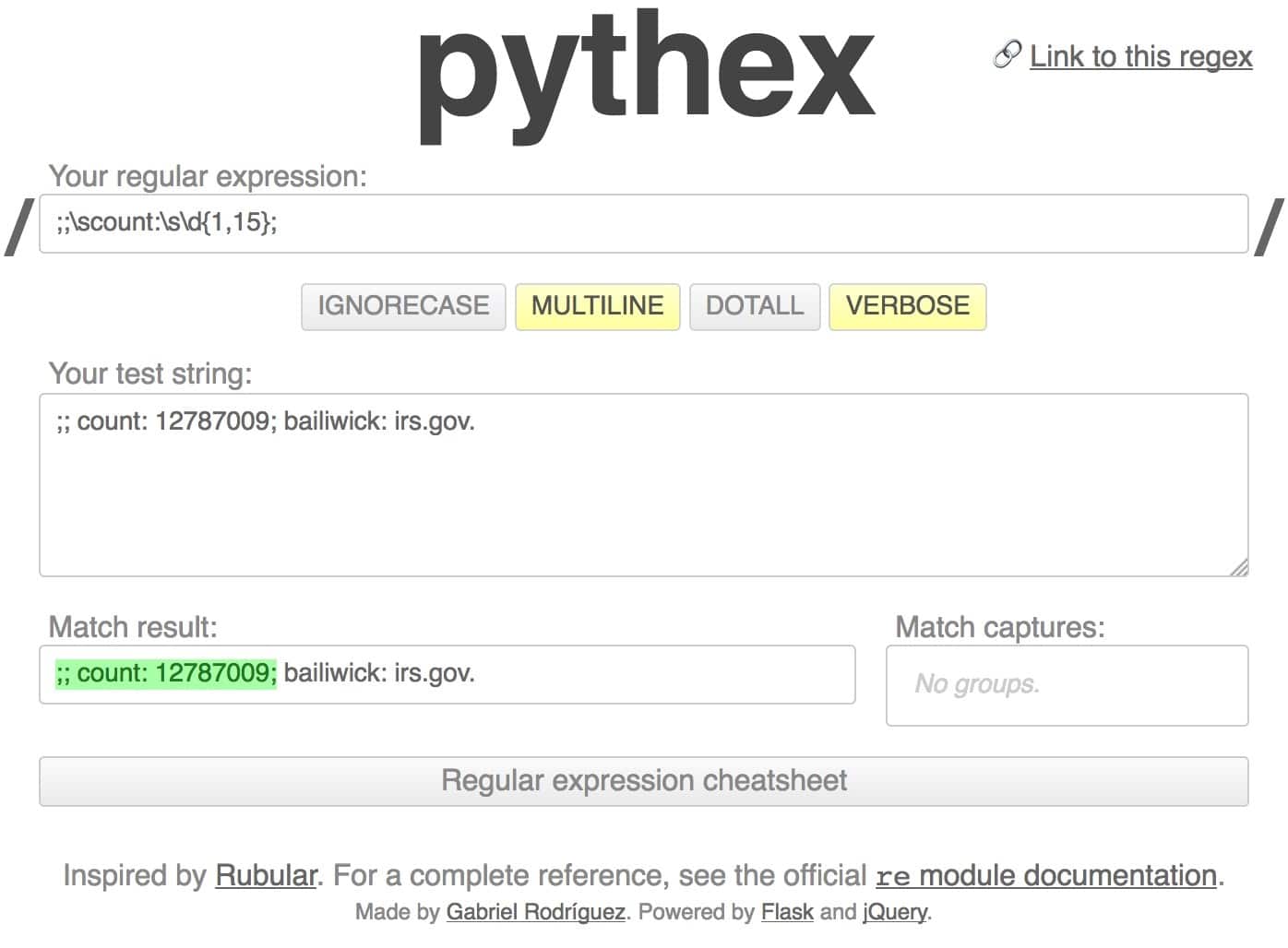
Exhibit 10: Decoding the 2nd regex:
;		literal semi-colon
\s		whitespace
count:		literal string count:
\d		digit
{1,15}		repeat the preceding 1 to 15 times
Once we have the regular expressions we need, we can then modify our input file:
Exhibit 11: input2.yaml
title: demo handling of "okay-to-vary" content
suite: all
output: output2.yaml
tests:

- sh: dnsdbq -r www.irs.gov/cname -S -l 1
ignore: \s..\s\d{4}\-\d{2}\-\d{2}\s\d{2}:\d{2}:\d{2}
ignore: ;;\scount:\s\d{1,15};
We can then do our training run:
Exhibit 12: Create baseline for okay-to-vary test
$ pbbt input2.yaml output2.yaml --train
========================================================================
  demo handling of "okay-to-vary" content [/all]
  ("input2.yaml", line 1)
--
  SH: dnsdbq -r www.irs.gov/cname -S -l 1
  ("input2.yaml", line 6)
* new test output
  ;; record times: 2015-10-07 18:57:55 .. 2018-02-15 00:35:31
  ;; count: 12789892; bailiwick: irs.gov.
  www.irs.gov.  CNAME  www.irs.gov.edgekey.net.

> Press ENTER to record, 's'+ENTER to skip, 'h'+ENTER to halt
>
> Press ENTER to save changes, 'd'+ENTER to discard changes
>
*saving test output to 'output2.yaml'
========================================================================
*TESTS: 1 updated
And a while later, we can do a check run, which passes successfully:
Exhibit 13: Checking the okay-to-vary test
$ pbbt input2.yaml output2.yaml
========================================================================
  demo handling of "okay-to-vary" content [/all]
  ("input2.yaml", line 1)
--
  SH: dnsdbq -r www.irs.gov/cname -S -l 1
  ("input2.yaml", line 6)
========================================================================
*TESTS: 1 passed
IV. “Expected-to-Change” JSON Lines Output and pbbt
While we’ve been showing you how to mask out varying elements in text (“presentation”) format, you can also mask out varying elements in JSON lines format. For example, consider:
Exhibit 14: Expected-to-Change JSON Lines Output
$ dnsdbq -r www.irs.gov/cname -S -l 1 -j{"count":12791066,"time_first":1444244275,"time_last":1518661394,"rrname":"www.irs.gov.","rrtype":"CNAME","bailiwick":"irs.gov.","rdata":["www.irs.gov.edgekey.net."]}
We’ll build a yaml input file with an ignore line that looks like:
Exhibit 15: Sample JSON Lines Filtering input3.yaml file
title: demo handling of "okay-to-vary" content in JSON lines
suite: all
output: output3.yaml
tests:

- sh: dnsdbq -r www.irs.gov/cname -S -l 1 -j
ignore: \"count\":\d{1,12},\"time_first"\:\d{1,15},\"time_last\"\:\d{1,15},
We can then do a training run, and sometime later, a check run:
Exhibit 16: Training and Check runs for “okay-to-vary” JSON lines content
$ pbbt input3.yaml output3.yaml --train
========================================================================
demo handling of "okay-to-vary" content in JSON lines [/all]
("input3.yaml", line 1)
--
SH: dnsdbq -r www.irs.gov/cname -S -l 1 -j
("input3.yaml", line 6)
* new test output
  {"count":12791066,"time_first":1444244275,"time_last":1518661394,"rrname":"www.irs.gov.","rrtype":"CNAME","bailiwick":"irs.gov.","rdata":["www.irs.gov.edgekey.net."]}

> Press ENTER to record, 's'+ENTER to skip, 'h'+ENTER to halt
>
> Press ENTER to save changes, 'd'+ENTER to discard changes
>
*saving test output to 'output3.yaml'
========================================================================
*TESTS: 1 updated
$ pbbt input3.yaml output3.yaml
========================================================================
  demo handling of "okay-to-vary" content in JSON lines [/all]
  ("input3.yaml", line 1)
--
  SH: dnsdbq -r www.irs.gov/cname -S -l 1 -j
  ("input3.yaml", line 6)
========================================================================
*TESTS: 1 passed
V. Handling Commands That Are Supposed to Return A Non-Zero Error Code
Sometimes you may want to confirm that a command you’re testing “fails” (e.g., returns a non-zero status code) the way it should. For example, if you issue a dnsdbq command without a required argument, that should result in a non-zero status code:
Exhibit 17: Incomplete command (missing argument), expected to return a non-zero status code
$ dnsdbq -r
dnsdbq: option requires an argument -- r
error: unrecognized option
usage: dnsdbq [-vdjsShc] [-p dns|json|csv] [-k (first|last|count)[,...]]
[continues]
To test that “expected failure”, we can create an input file that looks like:
Exhibit 18: input4.yaml file to test expected exit status code=1
title: demo handling of expected non-zero status code
suite: all
output: output4.yaml
tests:

- sh: dnsdbq -r
We’re now ready to train and check that expected non-zero test…
Exhibit 19: Training and Checking The “expected failure”
$ pbbt input4.yaml output4.yaml --train
========================================================================
demo handling of expected non-zero status code [/all]
("input4.yaml", line 1)
--
SH: dnsdbq -r
("input4.yaml", line 6)
* new test output
dnsdbq: option requires an argument -- r
error: unrecognized option
usage: dnsdbq [-vdjsShc] [-p dns|json|csv] [-k (first|last|count)[,...]]
[etc]
> Press ENTER to record, 's'+ENTER to skip, 'h'+ENTER to halt
>
> Press ENTER to save changes, 'd'+ENTER to discard changes
>
*saving test output to 'output4.yaml'
========================================================================
*TESTS: 1 updated
$ pbbt input4.yaml output4.yaml
========================================================================
  demo handling of expected non-zero status code [/all]
  ("input4.yaml", line 1)
--
  SH: dnsdbq -r
  ("input4.yaml", line 6)
========================================================================
*TESTS: 1 passed
VI. Summary
You’ve now learned a little about black box testing, and how you can use
pbbt
to test
dnsdbq
or other command line clients.
Specifically, we’ve shown you how to:
- How to install
pbbt - How to build basic
pbbtinput files - How to train and check commands whose output should be consistent from run-to-run
- How to cope with “expected to vary” content (both in presentation format and in JSON lines format)
- How
pythexcan help you build the regexes that
pbbt
We hope you’ll find these skills helpful as you build and run your own black box tests. For more information on pbbt, be sure to visit pbbt 0.1.5.
Joe St Sauver Ph.D. is a Distinguished Scientist with Farsight Security, Inc.